Join 5,000+ teams using AI-powered PDF extraction Start free →
Live Google Sheets Output

PDF to Google Sheets: Convert Any PDF into a Live, Editable Spreadsheet

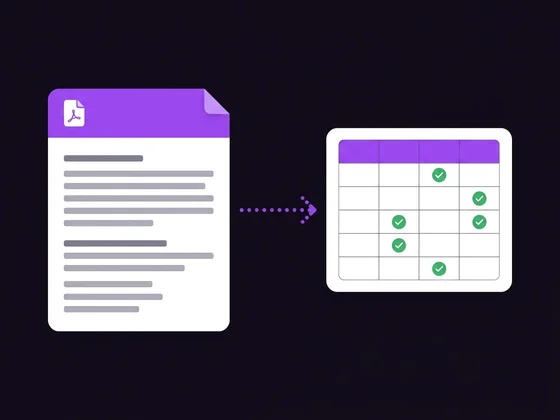
Upload a PDF and get its data pushed directly into Google Sheets, no downloading files or manual importing. Works on digital PDFs, scanned documents, and photographed pages.

A PDF document being converted into a live Google Sheet

To convert a PDF to Google Sheets, upload the PDF to Lido. Its AI reads the document's tables, form fields, and layout, whether the PDF is digital, scanned, or a photographed page, and pushes the structured data directly into a Google Sheet. There's no intermediate file to download and re-import: the sheet is live and shareable as soon as processing finishes.

How it works

From PDF to a live Google Sheet in three steps

1

Upload the PDF

Digital PDF, scanned document, or a photographed page saved as PDF. Lido reads all three the same way.

2

AI reads tables, forms, and layout

The AI identifies tables, labeled fields, and document structure, and extracts each value with a confidence score, without a per-document template.

3

Data lands live in Google Sheets

Structured data is pushed directly into a Google Sheet ready to share and edit. Excel, CSV, JSON, and XML export are also available.

Case study

How a multi-location retail chain got one shared live spreadsheet

A retail chain with stores across a dozen locations collected weekly sales reports as PDFs, emailed in by each store manager. Head office staff previously downloaded each PDF, retyped the figures into a master Excel file, and re-emailed it out for review, a cycle that meant everyone was working from a different version by the time it reached them.

With Lido, each store's PDF report is uploaded and its data is pushed directly into a shared Google Sheet that headquarters and regional managers all view and edit together. No one downloads a file or waits for the latest version to be emailed; the sheet reflects each week's reports as soon as they're processed.

Testimonials

Teams that stopped emailing spreadsheet versions

"We used to have a master spreadsheet that lived in someone's inbox. Now the data goes straight into a Google Sheet everyone already has open."

Priya S. Regional Operations Director

"No more downloading a file, opening it, and importing it somewhere else. The PDF goes in and the Google Sheet just updates."

Owen T. Finance Manager

"Being able to share a link instead of an attachment sounds small, but it removed an entire category of 'which version is this' questions."

Lindiwe M. Business Operations Lead

PDF conversion for teams that live in Google Sheets

A PDF to Google Sheets workflow fits any team already collaborating in Google Workspace: retail and multi-location operations, finance teams tracking reports from multiple sources, and any group that needs one shared, editable source of truth instead of a downloaded file passed around by email. Because the data lands directly in a live sheet, there's no import step and no version drift between copies.

If Excel is your preferred output instead, see Lido for full Excel, CSV, JSON, and XML export. For forms specifically, see form to Excel. For handwritten documents, see handwritten to Excel or how to convert handwriting to Excel. For more guides, visit the Lido blog.

Security

Built for PDFs containing sensitive information

🔒

SOC 2 Type 2 certified

Independently audited controls for security, availability, and confidentiality.

🏥

HIPAA compliant

Safe for PDFs containing protected health information.

🚫

No training on your data

Your PDF contents are never used to train AI models.

24-hour data retention

Uploaded PDFs are automatically deleted from our systems within 24 hours.

Frequently asked questions

How do I convert a PDF to Google Sheets?

Upload the PDF to Lido. The AI reads its tables, form fields, and layout, then pushes the structured data directly into a Google Sheet, no downloading a file and re-importing it required. The sheet is live and ready to share as soon as processing finishes.

Does this work with scanned or photographed PDFs, not just digital ones?

Yes. Lido's AI reads digital PDFs, scanned PDFs, and photographed pages saved as PDF the same way. It doesn't rely on the PDF containing a selectable text layer, so scanned and photographed documents convert to Google Sheets just as reliably as native digital PDFs.

Why Google Sheets instead of downloading an Excel file?

A Google Sheet is live and cloud-based from the moment it's created: it can be shared with a link, edited by multiple people at once, and referenced by other tools without anyone managing file versions or emailing attachments. Excel export is also available for teams that prefer a downloaded file.

Can my team edit the Google Sheet after it's created?

Yes. Once the PDF's data lands in Google Sheets, it's a normal, fully editable spreadsheet. Anyone with access can correct values, add columns, apply formulas, or connect it to other Google Workspace tools, the same as any sheet they created manually.

What kinds of PDFs can be converted?

Tables, forms, invoices, reports, statements, and multi-page documents with mixed layouts. Lido reads the PDF's visual structure directly, so it handles digital PDFs, scanned PDFs, and photographed pages without needing a template for each document type.

How accurate is PDF to Google Sheets conversion?

Lido's AI achieves 99.5% field-level accuracy across digital, scanned, and photographed PDFs. Every extracted value carries a confidence score, so low-confidence fields can be flagged for a quick check before the sheet is finalized.

Pricing

Simple, transparent pricing

Standard

$29/month

For individuals and small teams converting PDFs regularly.

  • 500 pages/month
  • All export formats
  • Email automation
  • Standard support
Try it free

Enterprise

Custom

For organizations with advanced security and volume needs.

  • Unlimited pages
  • Dedicated support
  • Custom integrations
  • SSO & advanced security
Book a demo
Try it free — 50 pages, no credit card, all features included